

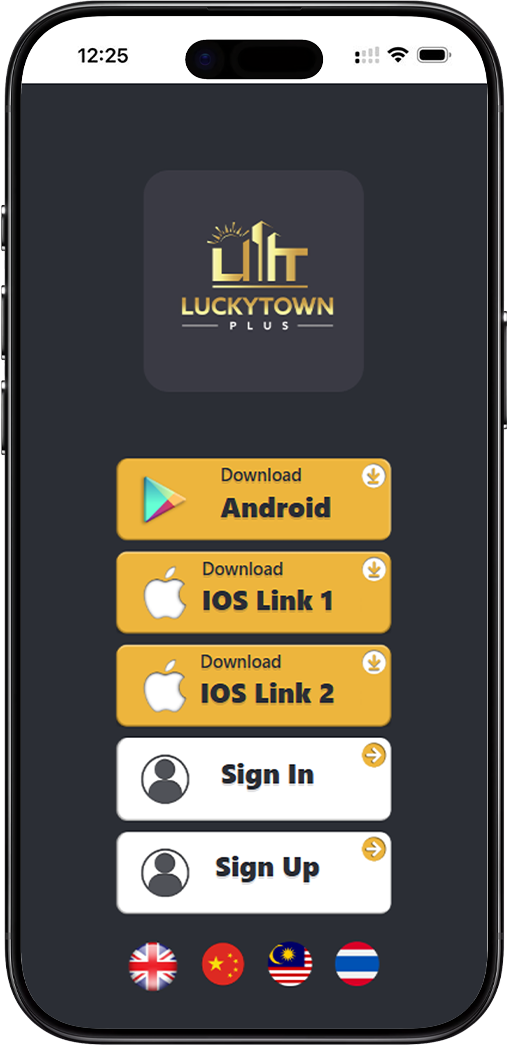
The LUCKYTOWN PLUS platform is designed to be accessible across all your devices. Whether you're using an Android phone, iPhone, Windows PC, or Mac, you can create a secure shortcut to the LUCKYTOWN PLUS web app in just a few taps. No app store downloads required - just fast, direct access to your LUCKYTOWN PLUS account.
How to Download LUCKYTOWN PLUS on Android
Step 1: Open Chrome Browser
On your Android device, open the Google Chrome browser. Make sure you're connected to the internet to access the LUCKYTOWN PLUS download page.
Step 2: Visit the Official Download Page
Go to the official LUCKYTOWN PLUS download URL: https://teamlky.xyz/download/appNew. This is the secure gateway to add LUCKYTOWN PLUS to your home screen.
Step 3: Open the Chrome Menu
Tap the three-dot menu in the top-right corner of the Chrome browser. This opens a dropdown menu with additional options.
Step 4: Select "Add to Home screen"
From the menu, choose "Add to Home screen." You may be prompted to name the shortcut - enter "LUCKYTOWN PLUS" or "LUCKYTOWN PLUS" for easy recognition.
Step 5: Confirm and Access
Tap "Add" to confirm. The LUCKYTOWN PLUS icon will now appear on your Android home screen. Tap it anytime to launch the LUCKYTOWN PLUS web app instantly.
Troubleshooting: "Install App" Instead of "Add to Home Screen"
If Chrome shows "Install app" instead of "Add to Home screen," try enabling Airplane Mode briefly or refreshing the page. After turning the internet back on, the correct option usually appears. This is a known workaround for adding LUCKYTOWN PLUS to your home screen.
How to Download LUCKYTOWN PLUS on iOS (iPhone / iPad)
Step 1: Open Safari Browser
On your iPhone or iPad, open Safari. The "Add to Home Screen" feature is only available in Safari on iOS devices.
Step 2: Visit the Official Download Page
Go to https://teamlky.xyz/download/appNew using Safari. This is the secure LUCKYTOWN PLUS download page for iOS users.
Step 3: Tap the Share Button
At the bottom of the Safari screen, tap the Share icon. This opens the sharing options menu.
Step 4: Choose "Add to Home Screen"
Scroll down and select "Add to Home Screen." You can customize the name - enter "LUCKYTOWN PLUS" or "LUCKYTOWN PLUS" for easy access.
Step 5: Confirm and Access
Tap "Add" in the top-right corner. The LUCKYTOWN PLUS icon will now appear on your iOS home screen, giving you one-tap access to the LUCKYTOWN PLUS platform.
How to Download LUCKYTOWN PLUS on Windows
Method 1: Drag and Drop Shortcut
Open Chrome, Edge, or Firefox. Go to the LUCKYTOWN PLUS download page. Drag the lock icon from the address bar to your desktop. A shortcut to LUCKYTOWN PLUS will be created instantly.
Method 2: Chrome "Create Shortcut"
In Chrome, visit the LUCKYTOWN PLUS page. Click the three-dot menu, then More Tools, then Create Shortcut. Name it "LUCKYTOWN PLUS" and check "Open as window" if you prefer an app-like experience. Click Create, and the shortcut appears on your desktop.
Method 3: Microsoft Edge "Install as App"
In Edge, go to the LUCKYTOWN PLUS page. Click the menu, then Apps, then Install this site as an app. Name it "LUCKYTOWN PLUS" and confirm. The site will behave like a native app, and you can pin it to your taskbar or Start Menu.
Method 4: Manual Desktop Shortcut
Right-click on your desktop, choose New, then Shortcut. Paste the URL https://teamlky.xyz/download/appNew, name it "LUCKYTOWN PLUS," and click Finish. A shortcut to LUCKYTOWN PLUS will be created.
How to Download LUCKYTOWN PLUS on macOS
Safari Method: Drag URL to Desktop
Open Safari and go to the LUCKYTOWN PLUS download page. Drag the URL or the lock icon from the address bar to your desktop. This creates a .webloc file - double-click it to open LUCKYTOWN PLUS in Safari.
Chrome Method: Create Shortcut
In Chrome, visit the LUCKYTOWN PLUS page. Click the three-dot menu, then More Tools, then Create Shortcut. Name it "LUCKYTOWN PLUS" and click Create. The shortcut will appear on your desktop for quick access.
Customize Your macOS Shortcut Icon (Optional)
Right-click the shortcut on your desktop and select "Get Info." Drag a custom image, such as the LUCKYTOWN PLUS logo, onto the small icon preview at the top-left. This personalizes your shortcut for a cleaner look.
Why Download LUCKYTOWN PLUS as a Shortcut?
Downloading LUCKYTOWN PLUS as a home screen shortcut or desktop icon gives you one-tap access to the LUCKYTOWN PLUS platform without needing an app store. It's faster, saves storage space, and works seamlessly across all devices. Your LUCKYTOWN PLUS experience remains secure and consistent whether you're on mobile or desktop.
Frequently Asked Questions About LUCKYTOWN PLUS Download
Is the LUCKYTOWN PLUS Download Free?
Yes, downloading and accessing LUCKYTOWN PLUS is completely free. You only need a compatible device and an internet connection to start using the LUCKYTOWN PLUS platform.
Do I Need to Install Any Software?
No. LUCKYTOWN PLUS runs entirely in your browser. The "download" process simply creates a shortcut to the web app - no additional software or storage is required.
Is My LUCKYTOWN PLUS Account Secure on All Devices?
Absolutely. LUCKYTOWN PLUS uses the same encryption and security protocols across all platforms. Whether you log in from Android, iOS, Windows, or macOS, your LUCKYTOWN PLUS account is protected.
Start Your LUCKYTOWN PLUS Journey Today
Download LUCKYTOWN PLUS on your favorite device and enjoy secure, instant access to the LUCKYTOWN PLUS community. One tap is all it takes.
Download LUCKYTOWN PLUS Now